
Select Classrooms – Instructor
How to make a reservation in Connect2
You can reserve classroom spaces in Art & Design and Flagg Hall by using the Checkout Window online reservation system (Connect2).
First, follow the link to the Connect2 above, or on the Checkout Window page.
Log in using your NetID and password.
Once you are logged in, to create a reservation, click on the Book by Category menu and select Classrooms – Instructor.
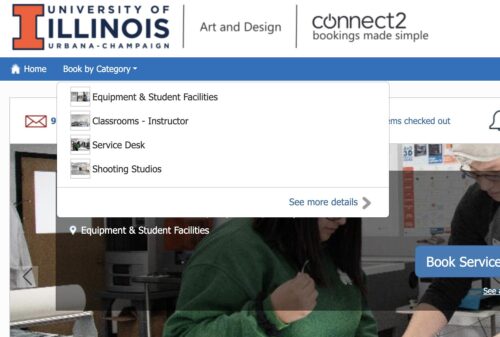
Select Classrooms – Instructor
Search for Room Number or Building Name
Enter the room number (for example: 340 for 340 Art & Design) to find a specific room, or the building name (Flagg or A+D) to browse the available rooms. You can also navigate using the categories on the left.
Click Add to Basket and then click Create Booking.
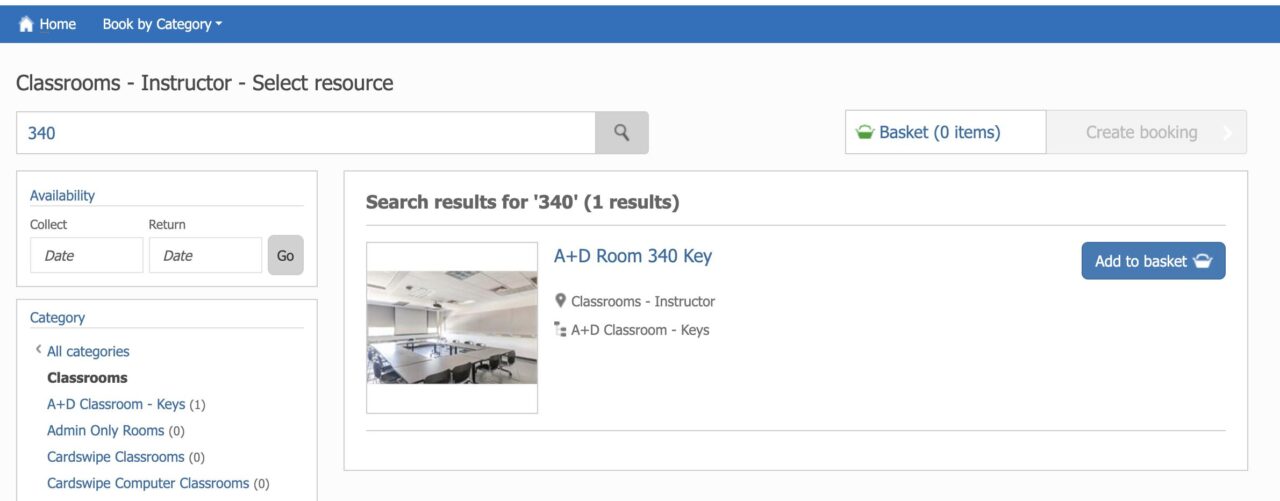
Search for Room or Building

Select Date/Time
Select a Time/Date
Select the Time/Date of your reservation by using the menus on the right. You can also click on the calendar to set a start time.
The default time frame is 3 hours, but you can adjust it as needed, up to 10 hours.
If there are items that are unavailable, or the checkout or return times have errors, there will be a red bar at the top of the screen. You must correct the errors to proceed.
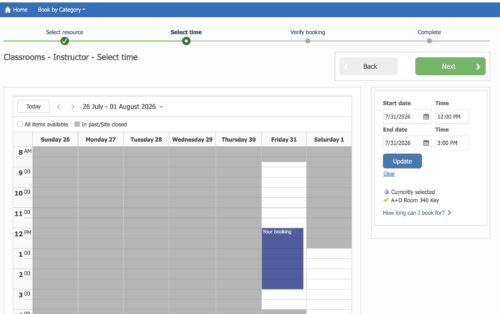
Select Date/Time
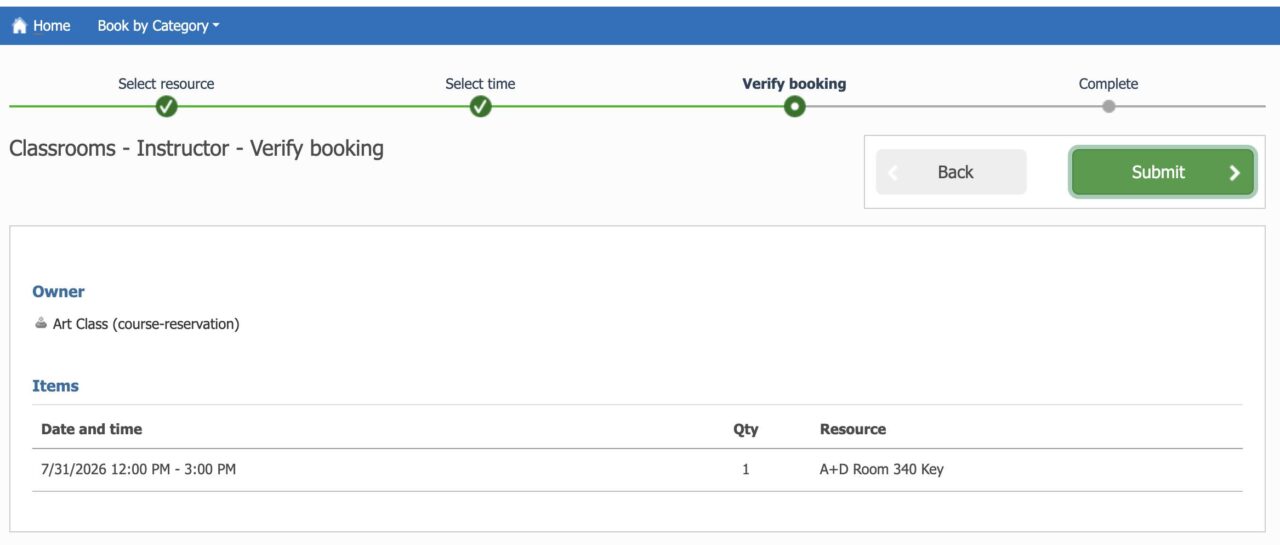
Verify Details
Verify Booking
Check to make sure everything looks correct and click Submit.

You’re Done!
You're Done!
That’s it! If you need to borrow a key from the space, you may do so at the Checkout Window (room 236 A+D) at your reserved time.
If you already have your own key to the space (or it is a cardswipe access space), no need to stop by the Window.
If you would like to cancel a reservation (booking) that you have made, start by finding your upcoming reservations from the Home screen by clicking on “Active Bookings”. Then click on the reservation you would like to edit, and then selecting the Delete button in the menu on the right. You cannot edit a reservation once it has been made, you must delete and recreate it.
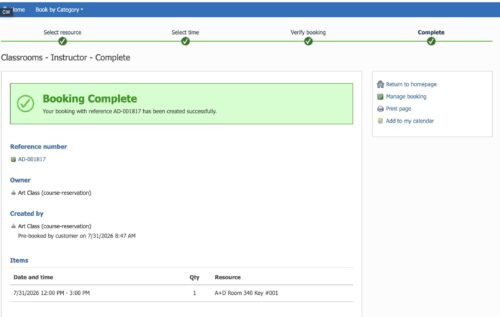
You’re Done!